Keyboard & navigation
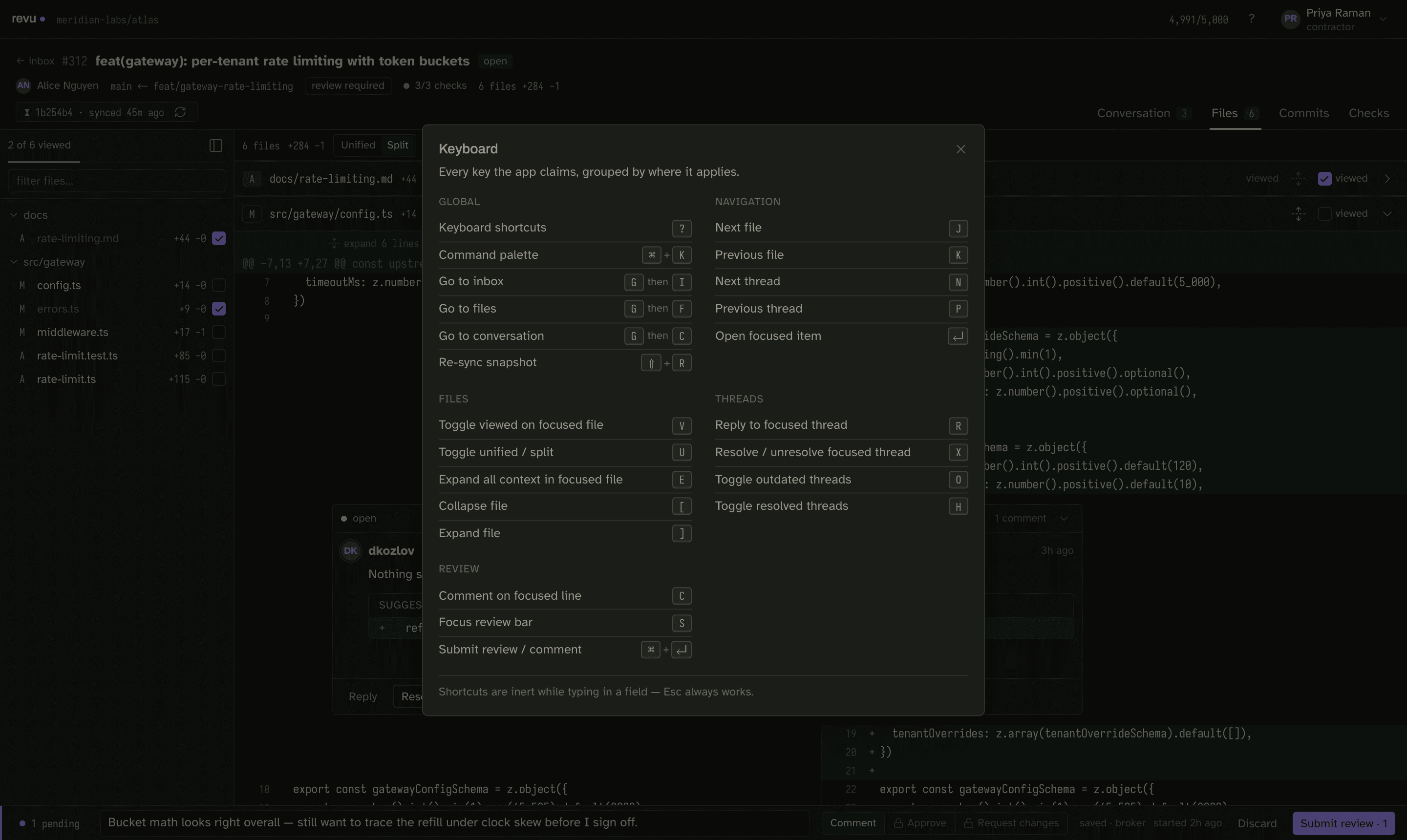
The full shortcut catalog and the command palette — every key the app claims, one press of ? away.
revu is keyboard-first. Everything you do in a review — jumping files, walking
threads, writing a comment, resolving, re-syncing — has a key, and the whole map
is one press of ? away. This page is that map, grouped by where each key
applies, plus the command palette.
Two rules hold everywhere:
- Shortcuts are inert while typing in a field —
Escalways works. When your cursor is in a comment box or the palette, letter keys type letters. PressEscto leave the field, then the shortcuts are live again. - Most keys act on the focused item — the focused file, the focused thread, the focused line. Navigation keys move that focus; action keys operate on it.
The shortcut sheet
Press ? anywhere to open the sheet. It lists every key the app claims, grouped
the same way as below, so you never have to leave the tool to remember one.
Global
Available on every screen.
| Action | Keys |
|---|---|
| Keyboard shortcuts (this sheet) | ? |
| Command palette | ⌘ K |
| Go to inbox | g then i |
| Go to files | g then f |
| Go to conversation | g then c |
| Re-sync snapshot | ⇧ R |
The three g bindings are two-key sequences: tap g, then the destination key.
They map to the three main screens — the inbox,
the Files diff, and the PR Conversation (overview, description, timeline).
⇧R re-fetches the PR into a fresh snapshot. It exists
because a PR in revu is a point-in-time snapshot, not a live view: you review
offline against what you synced, and re-sync is the deliberate act that pulls the
world forward. Threads, checks, and mergeability refetch on every sync,
unconditionally — a thread someone resolved elsewhere shows up even when no new
commits landed. Your draft is never touched by a re-sync.
Navigation
Moves focus. Nothing is submitted or changed.
| Action | Keys |
|---|---|
| Next file | j |
| Previous file | k |
| Next thread | n |
| Previous thread | p |
| Open focused item | ⏎ |
j / k walk the file list; n / p walk threads. ⏎ opens whatever is
focused — a PR in the inbox, a file, a thread.
Files
Act on the focused file in the Files diff.
| Action | Keys |
|---|---|
| Toggle viewed on focused file | v |
| Toggle unified / split | u |
| Expand all context in focused file | e |
| Collapse file | [ |
| Expand file | ] |
v marks the focused file viewed and is per-file — it is how you track your
way through a large diff. Viewed state persists across syncs; see
Viewed & reactions.
u flips the whole diff between unified and split (side-by-side) layout.
e expands all the collapsed context in the focused file at once; [ and ]
collapse and expand an individual file — useful on a big PR where lockfiles and
generated files start collapsed.
Threads
Act on the focused review thread. Use n / p (above) to move between threads
first.
| Action | Keys |
|---|---|
| Reply to focused thread | r |
| Resolve / unresolve focused thread | x |
| Toggle outdated threads | o |
| Toggle resolved threads | h |
r opens a reply into your local draft; x toggles the focused thread between
resolved and open. o and h are view filters — they show or hide outdated
threads (anchored to lines that have since moved) and already-resolved
threads, so you can concentrate on what is still open without losing the rest.
Replies and resolutions go into your draft and are held locally until you submit. See Writing inline comments for the full flow.
Review
Write and submit. These are the actions that end with something leaving your machine.
| Action | Keys |
|---|---|
| Comment on focused line | c |
| Focus review bar | s |
| Submit review / comment | ⌘ ⏎ |
c starts an inline comment on the focused diff line — select a range first to
attach it across multiple lines. s focuses the review bar at the bottom of the
screen, where a draft is submitted as Comment, Approve, or Request
changes. ⌘⏎ submits from wherever you are.
Comment is the primary action; Approve and Request changes are gated per-PR, and the review bar tells you what to do when they are unavailable rather than graying out a dead end. If the branch moved since you synced, submitting routes you through reconcile instead of discarding your work. The full path is in Submitting a review.
Because c, r, and s all open a text field, remember the top rule: while you
are typing, letter shortcuts are inert — press Esc to step back out.
Command palette
Press ⌘K to open the command palette. It is the fastest way to jump straight to
a PR by number or title, or to run a command, without touching the mouse or
remembering a chord.
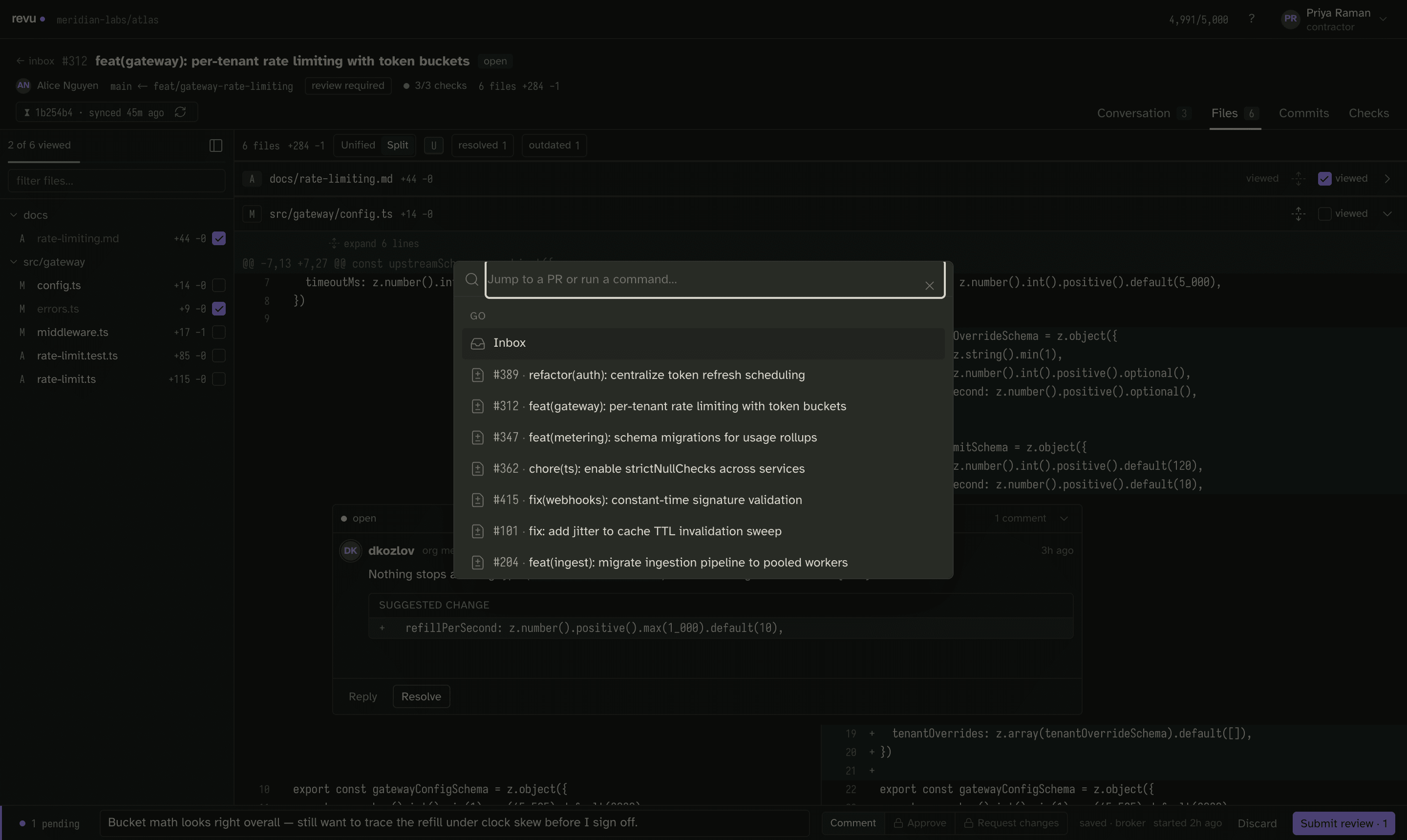
The input reads "Jump to a PR or run a command…" Type to filter. Results are
grouped — a GO section for destinations (Inbox and the open PRs, listed by
number and title), with each PR jumping you straight into its review. Use ⏎ to
open the highlighted result and Esc to dismiss the palette.
The map at a glance
The compact version, as it appears in the project README:
⌘K  command palette      j / k  files            c  comment      u  unified / split
g i inbox                n / p  threads          r  reply        ⇧R re-sync
g f files · g c checks   x  resolve · v  viewed
For the authoritative, always-current list, press ? in the app — the sheet is
generated from the same bindings the app actually listens for.
Where to go next
- Triage the inbox — where a review starts.
- Writing inline comments —
c,r,xin practice. - Viewed & reactions — how
vtracks a big diff. - Submitting a review —
s,⌘⏎, and what happens after. - Snapshots — why
⇧Rexists and what it refetches.